Friday, December 29, 2006

Chart templates with spreadsheet

A chart is a very intuitive tool to illustrate the data. However, in Google spreadsheet, there's no direct support in making charts.

Though, we can still use it to make some kind of charts, as illustrated by the snapshot:


To see the published charts, click the link here:

The detail to make the charts will not be described in words here. If you have a Google account, please view the template by the link:


If you want to make the chart in this way, copy the template and modify on it. I have to say, if you are accustomed with MS Excel, the procedure of making the chart seems cumbersome.

More snapshots are here:

Stacked Bar:


Stoplight:

Tuesday, December 26, 2006

Tips 1-2-3 for Google document and spreadsheet

tip 1 - Copy table from spreadsheet to document

Many people are accustomed to design tables in spreadsheet and then insert it into document. However, in Google document and spreadsheet, when you select an area of table in spreadsheet, copy and then paste it in Google document, the format of the table will lost. => you just can't do it in this way

Well, now you can follow next steps to do this:
- export Google spreadsheet to your computer in MS Excel format (.xls)
- open it with MS Excel, select the area of the table and copy,
- then paste it to Google document.
Note:
1. if you don't have MS Excel software, you can download the free Excel Viewer to open the file. The download link is:
Excel Viewer 2003
2. If you are using Openoffice, you can also export to Calc format (.ods) and then use Calc to do the same thing

Now you will get the table in Google document with the format you expect.

tip 2 - Create a temp document and temp spreadsheet for random use

Usually each document and spreadsheet has its specific usage and also has a meaningful name. However, there's some time you just want to type something and you don't want to keep them long or keep it in an organized method, for examples:
- In spreadsheet, you only want to test that a function in a Formula works well in an spreadsheet
- In document, you jot down some of you thoughts, and want to arrange them later

To meet the needs, just creating temp document and temp spreadsheet. When you have no idea on the right file to work, you can use the temp document or spreadsheet. => Seems a very simple tip, but it is useful.

tip 3 - Hide files in "active file" view of Docs home

The "active" file view list all the files in the last 30 days. To have a clean look, you may want to hide some files that you don't work in it.
To do this, just select the file and then click the "Archive" in the top, the file then will be hidden.
To see it again, select browse "all" view

tip 4 - Enable spelling check with Fixfox

In Google document, the spelling can be checked with a button at the left-down corner. However, till now, this function is not available in Google spreadsheet.

This problem can be partly resolved by using Firefox. Firefox can check spelling when you type words. When the words typed is worng, a red line will be shown under the words, so that you can be informed and correct the words.


============================================
to be added


Tuesday, December 12, 2006

Assignment Web Review Process for Teachers

1. Background

There's report from the teachers to use the Google Documents and Spreadsheet in the education (please refer to http://www.google.com/educators/p_docs_spreadsheets.html). For sure the features of Google Documents and Spreadsheet, as web-based and collaboration, make it very suitable for the education activities.

On the other hand, I found that there's scarce detail description on how use Google document and Spreadsheet for a teacher. I have put several weeks' effort (of course in part time) and developed an Assignment Web-Review Process to help the teachers adopt the Google Document and Spreadsheet early.

Please note that this process assumes the assignments are put to the individual student; that means, the students must complete the assignment independently. However, this process can be easily adapted to a group-based assignment.


2. Introduction

In a typical case, a teacher who holds a course will have a series of assignments (e.g. writing an essay) for the students. The work on the assignments requires the involvements of both teachers and students. Simply, there are three phases:

  • Phase 1: The teacher prepare the requirements of the assignment and announces it to the students
  • Phase 2: The students develop the assignments and the teacher review the result
  • Phase 3: The teacher summarize the result

It will be clearer when we use Process Map to describe these activities:

Table 1: Process Map of Assignment Web Review Process
Phase Primary task Access setting Description
Phase 1


Assignment Preparation - teacher
- all classmates
Teacher writes the requirements of the assignments in a documents

Assignment Announcement - teacher
- all classmates
Teacher announces the assignment to the class; to easy the process, a class bulletin can be used
Phase 2


Assignment development - teacher
- individual classmate
The student is doing the assignments, e.g. writing a essay, in a Google document; The teacher can see the document to check the status and give support if needed

Assignment review - teacher
- individual classmate
The teacher review the assignment when it is finished; also, the teacher will give comments and a score
Phase 3


Assignment summary - teacher only The teacher summarize the scores for all the assignments and all the classmates in one spreadsheet; at the end of the class, an evaluation can be made for all classmates based this.

With Google Document and Spreadsheet, this process can totally be done on the Web. The detail procedures are described below, with an example and tools developed for the process. The tools are provided as templates.


3. Description


3.1 Phase 1: Assignment Preparation and Announcement

In this phase, the teacher prepares the requirements for the assignments. This requirements can be made with a Google document. An example of the requirement is as following:

===============================================================

Course: New Idea Generation

Teacher: xxxx

Complete Date: Friday, this week

Assignment:

Write an essay to describe the most impressive thing today. Don't forget the techniques we have learned in class as "featured thinking" or "benchmark".

The title is: The most impressive thing today

Process:

1. Write the essay with Google document

2. share the document with me as a collaborator so that I can add the comment to it

3. open the class assignment tracking spreadsheet and past the link of your essay to the cell that is corresponding to your name

the tracking spreadsheet is here: class assignment tracking spreadsheet

Note: to get the link of your essay, go to your Google doc home, put the mouse on the top of the name of the essay, right-click the mouse and then select "Copy Shortcut"

That OK, I will add the comment in your essay

============================================================================================

This document should be published so that every students in the class can have access to it; The link to the above example is: http://docs.google.com/View?docid=dd2kr2g4_10cxcn4b


Next, the teacher need to have all the students got the link of the requirements. This can be done by send mail to all students. However, there's better way to communicate with the students, a tool we called the Class Bulletin, as illustrated in the next snapshot:


Link to the template of Bulletin: http://spreadsheets.google.com/ccc?key=p768IbAunX9ToSIZW-VFGSA


The Class Bulletin is implemented with Google spreadsheet and contains a set of information for the Class. The link to the Bulletin can be sent to all the classmates only once at the beginning of the the course. For each assignment, the teacher first publish the link to the requirement in the Bulletin; and then tell the student in the class there's a new assignment for them and the detail information can be found in the Bulletin.

To the student, after the assignment is announced in the class, the student then can go to the Class Bulletin to find the requirements of the assignment and start to work.

Besides the information of the assignment, the Bulletin is also useful to share other information as:
  • email addresses of all classmates and
  • reference books required by the class

3.2 Phase 2: Assignment Development and Review

In this Phase, the students will develop the assignment with the support of the teacher; when the assignment is finished by the students, the teacher will review the work, give the evaluation, and then score it.

To enable the interaction between teachers and students, a tool, called Assignment Tracker, is introduced. It is made with Google spreadsheet, as illustrated in the next picture:


Link to the template of Tracker: http://spreadsheets.google.com/ccc?key=o15303133726327222255.2015689958310057446

This Assignment tracker has a list all student's name,
links to their works, and instructions for the student; This tracker shall be made by the teacher and can be accessed by all the students in class; The template of Assignment Tracker is available here:
http://spreadsheets.google.com/ccc?key=o15303133726327222255.2015689958310057446

The first thing for the student in this phase is to create a Google document to write the essay on it first, then he/she past the link of the document to the tracker (in the column of "Assignment Link"), and then the student can work on the document. To let the teacher know the status, the student can also add a note in the tracker (in the column of "Status"), as "Work in Progress" or "Ready for Review", even as 'Help me!", etc.

For the teacher, he/she can monitor the progress of all the assignments in the column of status; Furthermore, the teacher can click into the link to go through the assignment document to see if the support is needed.

When the students finish the work, they can change the status in the tracker to "Ready for Review". The teacher, on the other side, then can take a through review of the work and make comments on the documents, and give a score of the work, The last look of the document looks like this:


Please note that the words in blue color are added by the teacher.


3.3 Phase 3: Assignment Summary

When all the assignments are reviewed and scored, the teacher then can make a summary for the results of all the assignments.


Link to the template of the summary: http://spreadsheets.google.com/ccc?key=o15303133726327222255.6707018715523248924


The Assignment Review Summary is accessed by the teacher only. It contains the results of all the assignments and can be used to have a final evaluation for each student, to check the effectiveness of each assignments, and to observe the trend of the students' achievements.

The template of Assignment Review Summary is available here:

http://spreadsheets.google.com/ccc?key=o15303133726327222255.6707018715523248924


4 Summary of this Article

At last, we use a picture to illustrated the review process that is implemented on Google documents and Spreadsheet.


And the list of the tools and the templates made with Google spreadsheet.

Table-2 List of tools

Tools Templates
Class bulletin link to Class bullentin
Assignment tracker link to Assignment tracker
Assignment review summary link to Assignment review summary


==============================================

Friday, December 1, 2006

2007 Calendar with Fiscal week (with template)

[section 1] background
In my corporation, fiscal week is widely used in the project planning and tracking. As a result, a calendar with the information of fiscal week becomes very useful.

With google spreadsheet, to create a calendar with fiscal week is as simple as a piece of cake. Most of the effor is the formattting to make it beautiful.

[section 2] experiencing

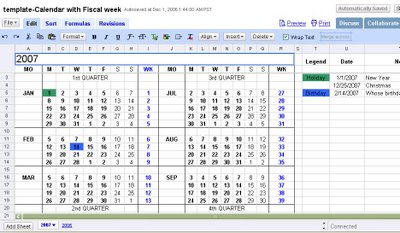
A glance of the Calendar is shown as the below:

or click the Google spreadsheet template of the Calendar
template-Calendar with Fiscal week

[section 3] advantages
I have used this calendar for several days. In my opinion, we can benefited in at lease 3 aspects:
- it looks very comfortable (do you also think so?)
- this calendar can be accessed from any place that has a web browser; you can easily get it when you need
- also, you can customize it as you want in you familiar way; e.g add a note to highlight the holiday or birthday of your dearest

[section 4] create your Calendar- step by step
It's very easy to create your copy of 2007 Calendar with the template. Just click the next link and then save a copy of it...

template-Calendar with Fiscal week

Please refer the section 4 of my blog: "Simple start-Contact list" on the way to create a copy of google documents and spreadsheet.

Hope you like it. Have a fun

feeback to me: gcaodian@gmail.com

Friday, November 24, 2006

Simple Start - Contact List

[Section 1] Introduction
One way to use Google documents and spreadsheet is your Contact List. Next I will tell more on the advantages, and give a template to simplify your effort.

[Section 2] Experience
Take a glance first of a Contact list made with Google spreadsheet,

or click the next link to see the template:

template - Contact List

I will give a step by step demonstration on the way to create your own contact list with the template in [section 4]

[Section 3] Why use google spreadsheet?

>>> One place, access everywhere
The first thing you should think of for the contact list is a place you can easy access anytime/anywhere, a format you can easy edit, and the most important, it will never lose. This is what google document can do.

>>> sharing with others => family address book
Also, with the capability of google doucment sharing, you can esaily share the a contact list to others. For example, you can setup a family address book for all members of your home.

>>> private and group sharing option

Don't want to share your good friends' contact information to others? That's ok. Just creating several spreadsheets; One is for you only; and the other one could be shared to your family or friends.

[Section 4] step by step to create your own Contact list

Step 1: First of all, you need a Google account to access Google document and spreadsheet.

Step 2: Click the link to the template:

template - Contact List

Step3: When the template is open, click the "file" button; from the pop-up menu, then select "copy spreadsheet...", as illustrated below:


Now a new window will alert you to type the name. Type the name of your contact list spreadsheet (as "template - contact list, new"), and then press "Ok" button.

Now you have your own Contact List. From now on, you can input information of your contacts.

feeback to me: gcaodian@gmail.com